

How to set up WhatsApp ordering
Let customers send orders directly to your WhatsApp. When enabled, customers can browse your menu, add items to their cart, and send the order to you via WhatsApp message.
Set up WhatsApp ordering
Log into your Menubly account
Click on "Menus" in the top navigation menu
Select the menu you want to set up
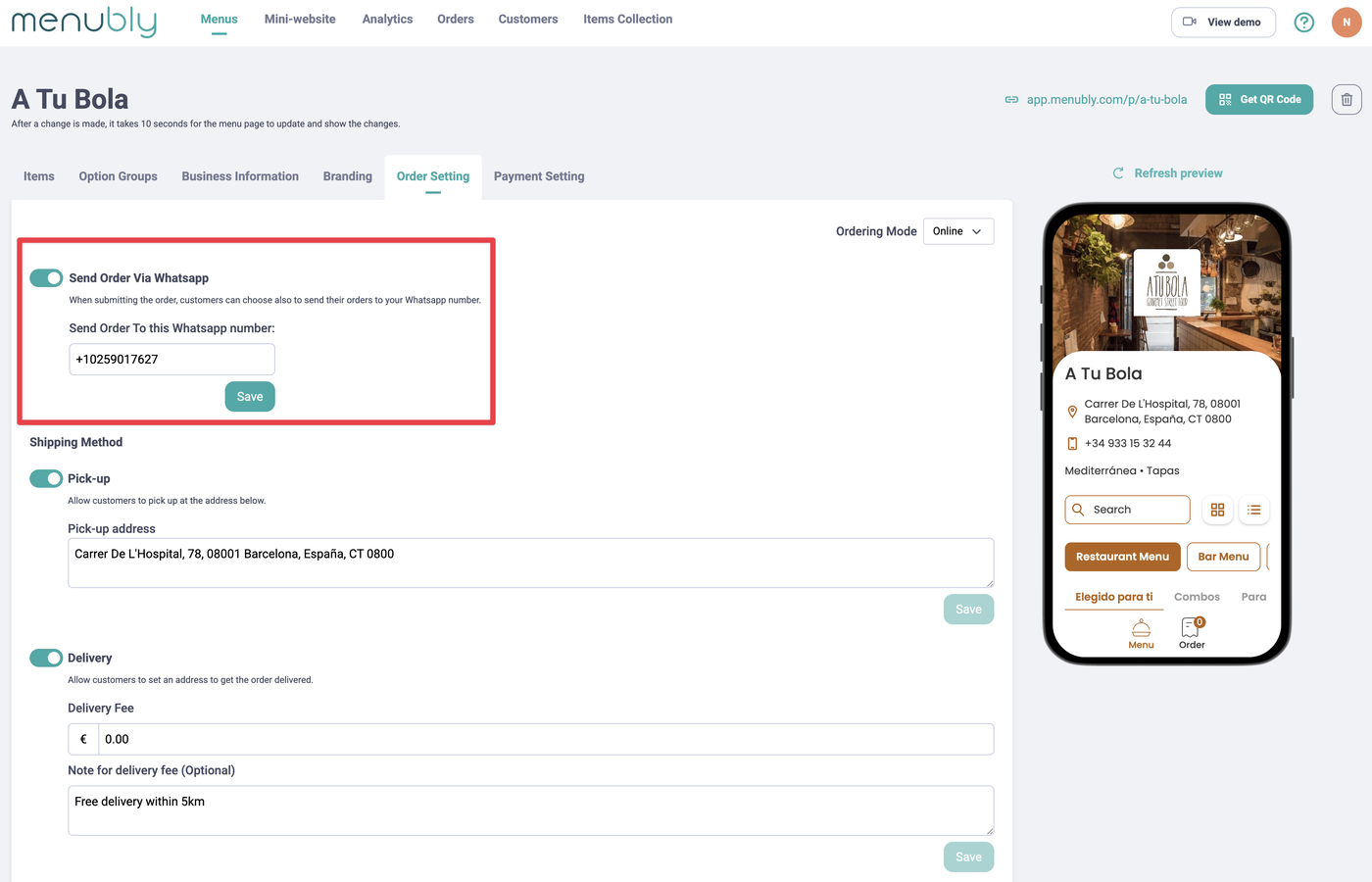
Go to the "Order Setting" tab
Set "Ordering Mode" to "Online" (dropdown in top right)
Toggle on "Send Order Via Whatsapp"
Enter your WhatsApp phone number in the "Send Order To this Whatsapp number" field (include country code, e.g., +1 for US), then click "Save"
Set up your Shipping Method (Pick-up and/or Delivery) with your address and delivery fee if applicable, then click “Save”
How it works for customers
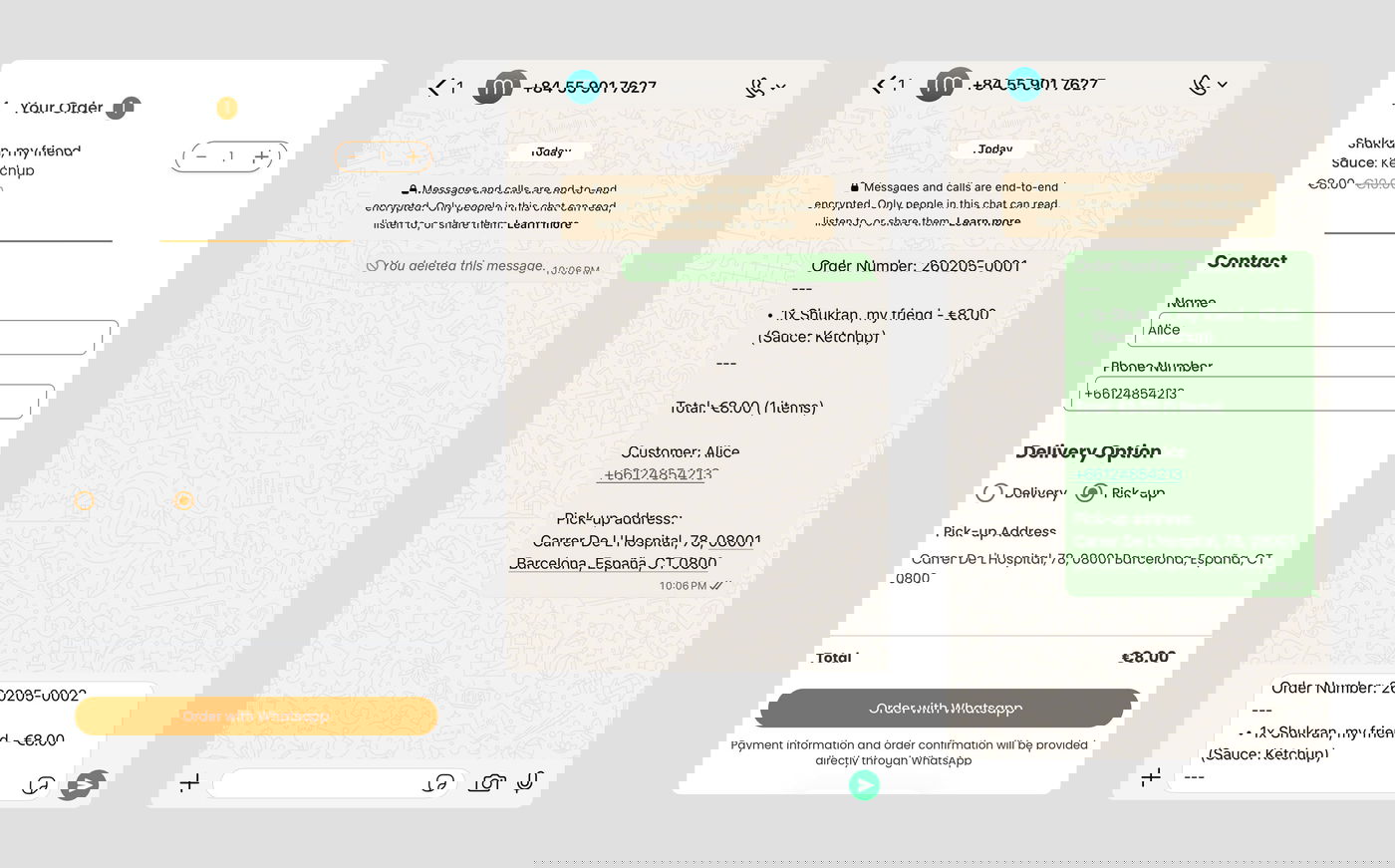
Customer browses your menu and adds items to cart
Customer enters their name, phone number, and selects delivery or pick-up
Customer taps "Order with Whatsapp"
WhatsApp opens with the order details pre-filled
Customer taps send to submit the order to you
What you'll receive
When a customer sends an order, you'll get a WhatsApp message with:
Order number
Items ordered with quantities, prices, and selected options
Order total (with item count)
Customer name and phone number (clickable to call)
Pick-up or delivery address

Respond to orders
Once you receive an order via WhatsApp, you can:
Confirm the order - Reply to let the customer know you received it
Provide time estimates - Tell them when the order will be ready
Ask questions - Clarify any details about the order
Send payment info - Share your payment instructions if needed
The customer's phone number is clickable, so you can also call them directly if needed.
Troubleshooting
Not receiving orders?
Make sure "Send Order Via Whatsapp" is toggled on
Check that you entered the correct phone number with country code
Verify the number is registered with WhatsApp
Want to change the number?
Go to Order Setting and update the WhatsApp number field
Click Save - new orders will go to the updated number