

How to manage orders in Menubly dashboard
Once you've set up online ordering for your restaurant, all customer orders will appear in your Orders dashboard. This guide shows you how to view, manage, and send invoices to your customers.
View your orders
Log into your Menubly account
Click on "Orders" in the top navigation menu
If you have multiple menus, use the dropdown next to "Orders" to select which menu's orders you want to view
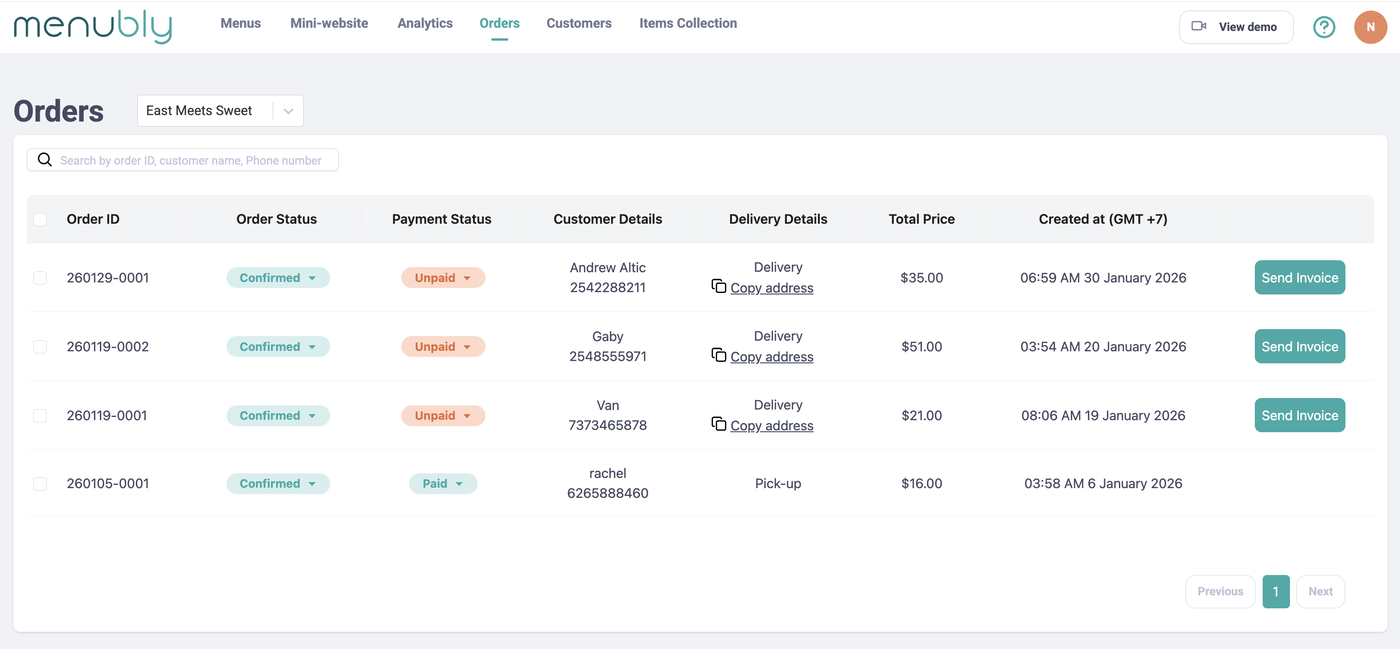
Your orders table shows:
Column | Description |
|---|---|
Order ID | Unique order number (e.g., 260129-0001) |
Order Status | Confirmed, Pending, Fulfilled, or Cancelled |
Payment Status | Unpaid, Paid, Partially Paid, or Refunded |
Customer Details | Customer name and phone number |
Delivery Details | Pick-up or Delivery (with option to copy address) |
Total Price | Order total amount |
Created at | Date and time the order was placed |
View order details
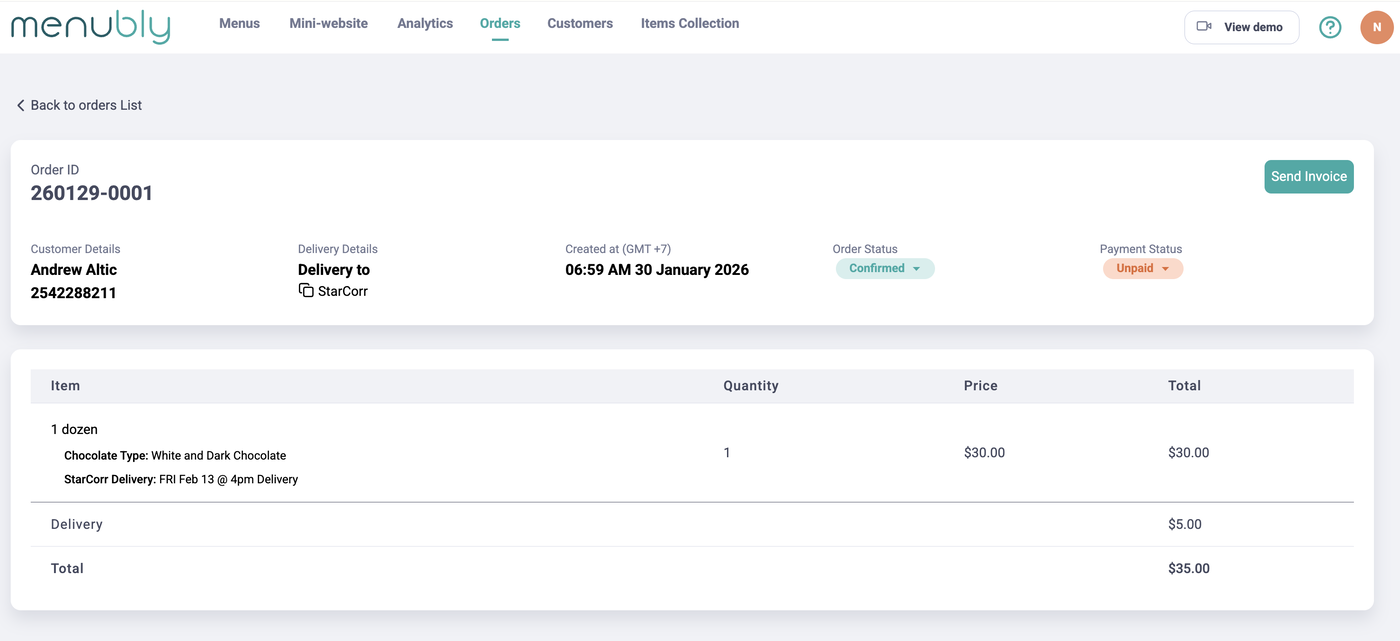
Click on any order row to open the detailed order screen. Here you can see:
Full list of items the customer ordered
Selected options and add-ons for each item
Item quantities and prices
Delivery fee (if applicable)
Order total
Search for orders
Use the search bar at the top to quickly find orders by:
Order ID
Customer name
Phone number
Update order status
Find the order you want to update
Click the Order Status dropdown (e.g., the green "Confirmed" button)
Select the new status from the dropdown menu
The change saves immediately
Order statuses:
Pending - New order, awaiting confirmation
Confirmed - Order accepted and being prepared
Fulfilled - Order completed and delivered/picked up
Cancelled - Order was cancelled
Update payment status
Find the order you want to update
Click the Payment Status dropdown
Select the new status
The change saves immediately
Payment statuses:
Unpaid - Awaiting payment
Paid - Full payment received
Partially Paid - Partial payment received
Refunded - Payment was refunded
Send an invoice to customers
Send an invoice with your payment instructions directly to the customer:
This is useful when you're using manual payment collection (cash on delivery, bank transfer, etc.).
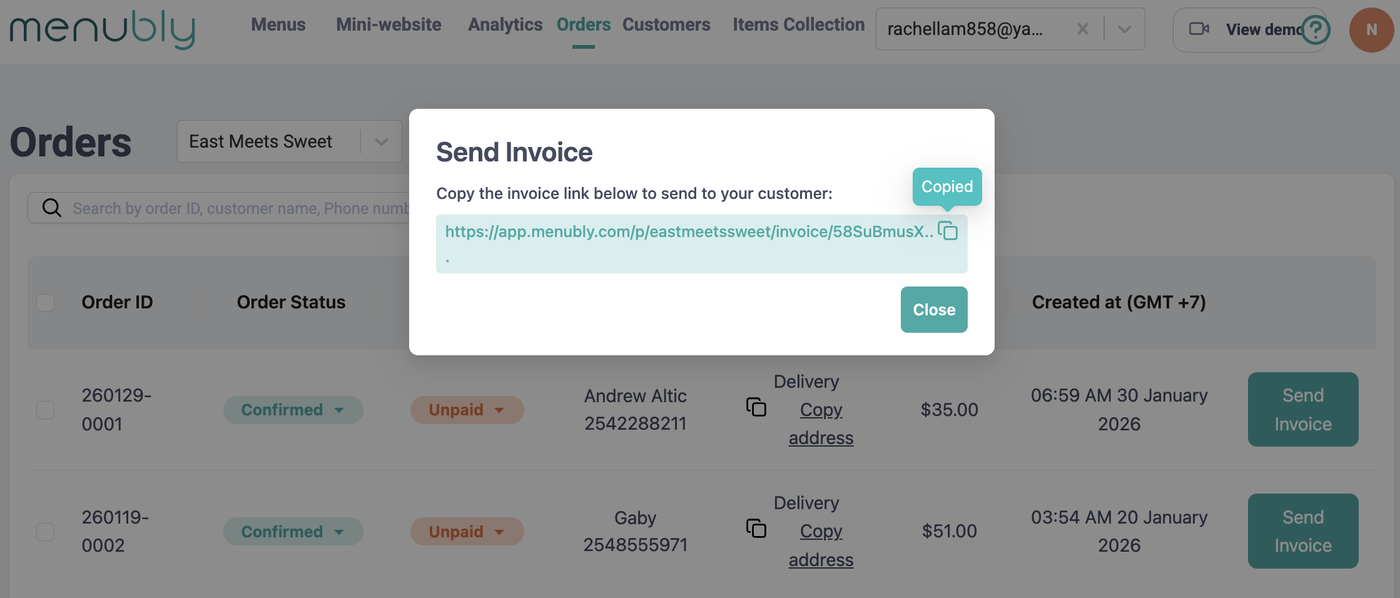
Click the "Send Invoice" button on the right side of the order row
A popup appears with an invoice link
Copy the link and send it to your customer via WhatsApp, SMS, or email
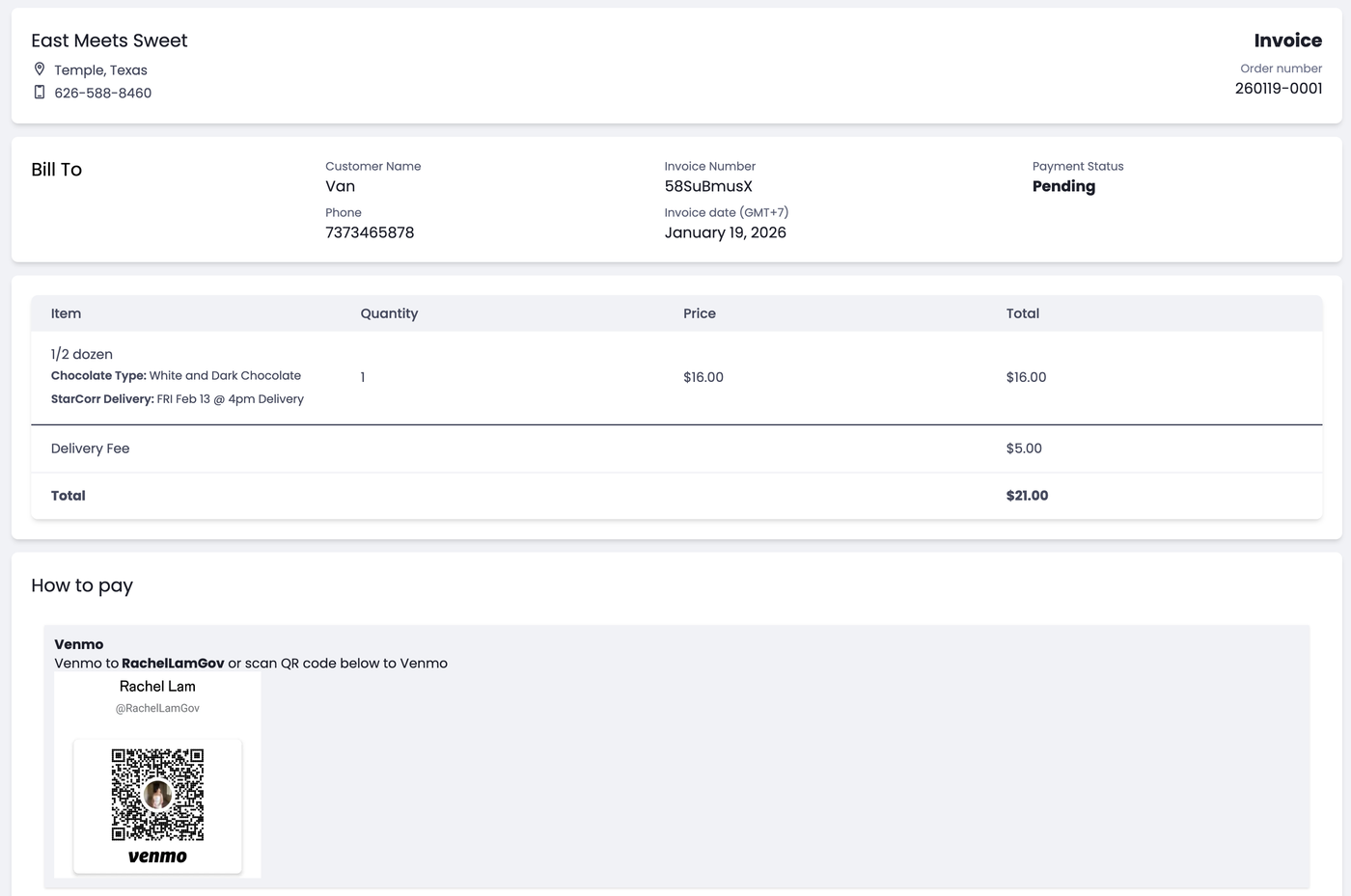
The invoice shows your restaurant details, the complete order, and your payment instructions (e.g., Venmo, bank transfer, cash on delivery).
Copy delivery address
For delivery orders, you can quickly copy the customer's address:
Find the delivery order
Under Delivery Details, click "Copy address"
The address is now copied to your clipboard - paste it into Google Maps or your delivery app
Get notified of new orders
Never miss an order! If you've set up your WhatsApp number in Order Settings, you'll receive a WhatsApp message for each new order.
Tips for managing orders efficiently
Check your dashboard regularly during busy hours
Update order and payment status promptly to keep track of your orders
Use the search bar to quickly find specific orders
Send invoices immediately for unpaid orders so customers can complete payment
Keep your WhatsApp notifications on so you never miss an order
Frequently Asked Questions
How do I know when a new order comes in?
If you've set up WhatsApp ordering, you'll receive a WhatsApp message for each new order. You can also check the Orders dashboard regularly during business hours.
Can I filter orders by date or status?
Currently, you can use the search bar to find specific orders by Order ID, customer name, or phone number.
How do I refund an order?
Change the Payment Status to "Refunded" using the dropdown. You'll need to process the actual refund through your payment provider (Stripe, bank transfer, etc.).
Can I print an order?
Click on the order to view details, then use your browser's print function (Ctrl+P or Cmd+P) to print the order details.
How do I cancel an order?
Click the Order Status dropdown and select "Cancelled". Consider contacting the customer via WhatsApp or phone number to let them know.
Can I edit an order after it's placed?
Orders cannot be edited directly. If a customer wants to change their order, ask them to place a new order and cancel the original one.
How long are orders kept in the dashboard?
All orders are stored in your dashboard indefinitely. You can always go back and view past orders.
Why can't I see the "Send Invoice" button?
The Send Invoice button only shows for orders with "Unpaid" payment status. If the customer paid instantly through Stripe when placing the order, the payment is already complete and no invoice is needed.