

How to enable payments with credit/debit card?
Prequisites: You have successfully set up and connected your Stripe Account to Menubly. If you have not done that, please go to Connect Stripe with Menubly Guide and finish Stripe set up first.
Follow the steps below to enable credit/debit card payments on the menu for your customers.
Please note that, to do this setup, you should be the business owner or someone who has all information about the company including access to the business' bank account and legal documents. It's because Stripe will ask you some details about your business to comply with Know Your Customer obligations.
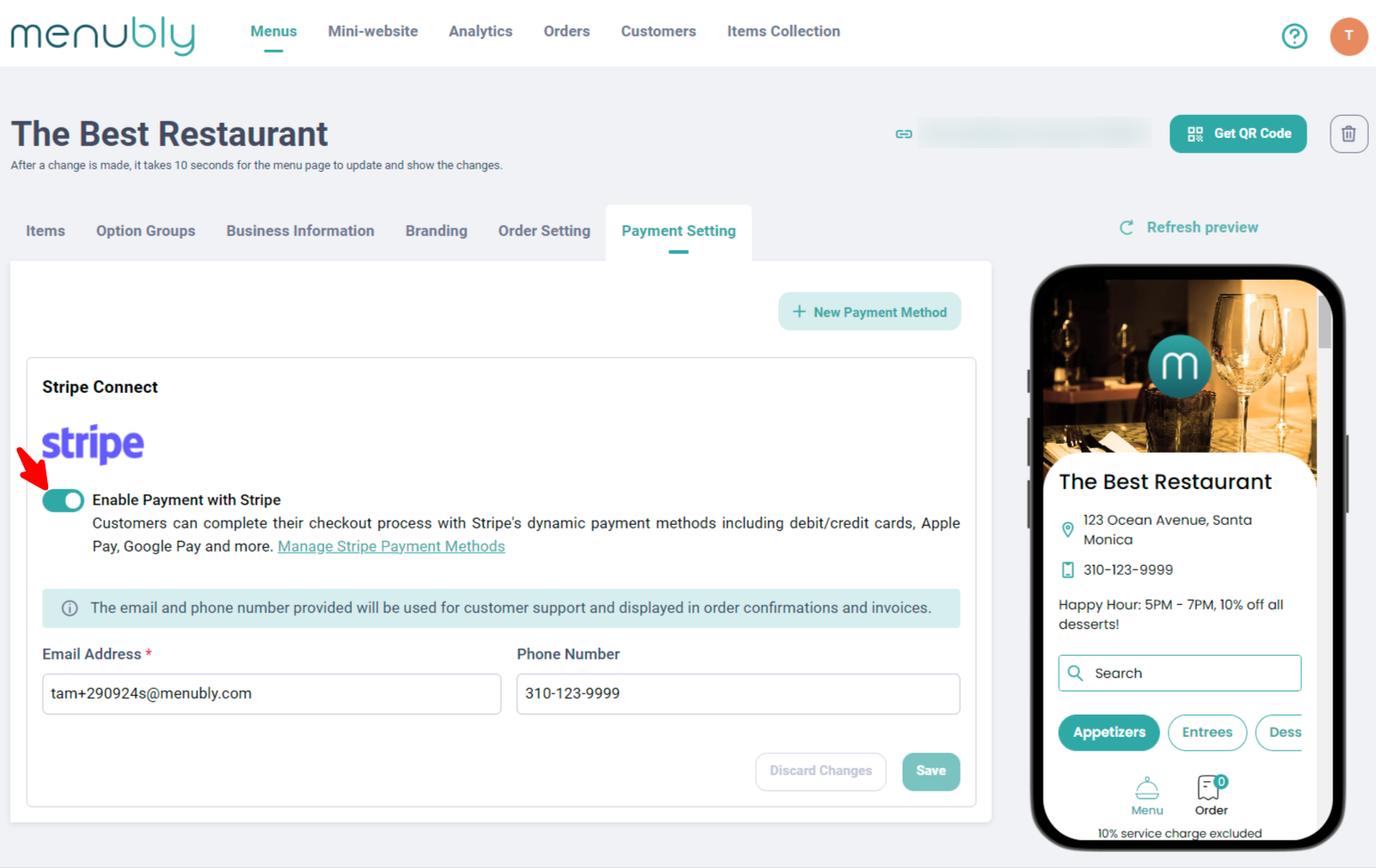
Step 1: After successfully created and linked Stripe account with Menubly, you can go to the menu you would like to enable credit/debit card payment for. Go to Payment Setting, and enable Stripe.
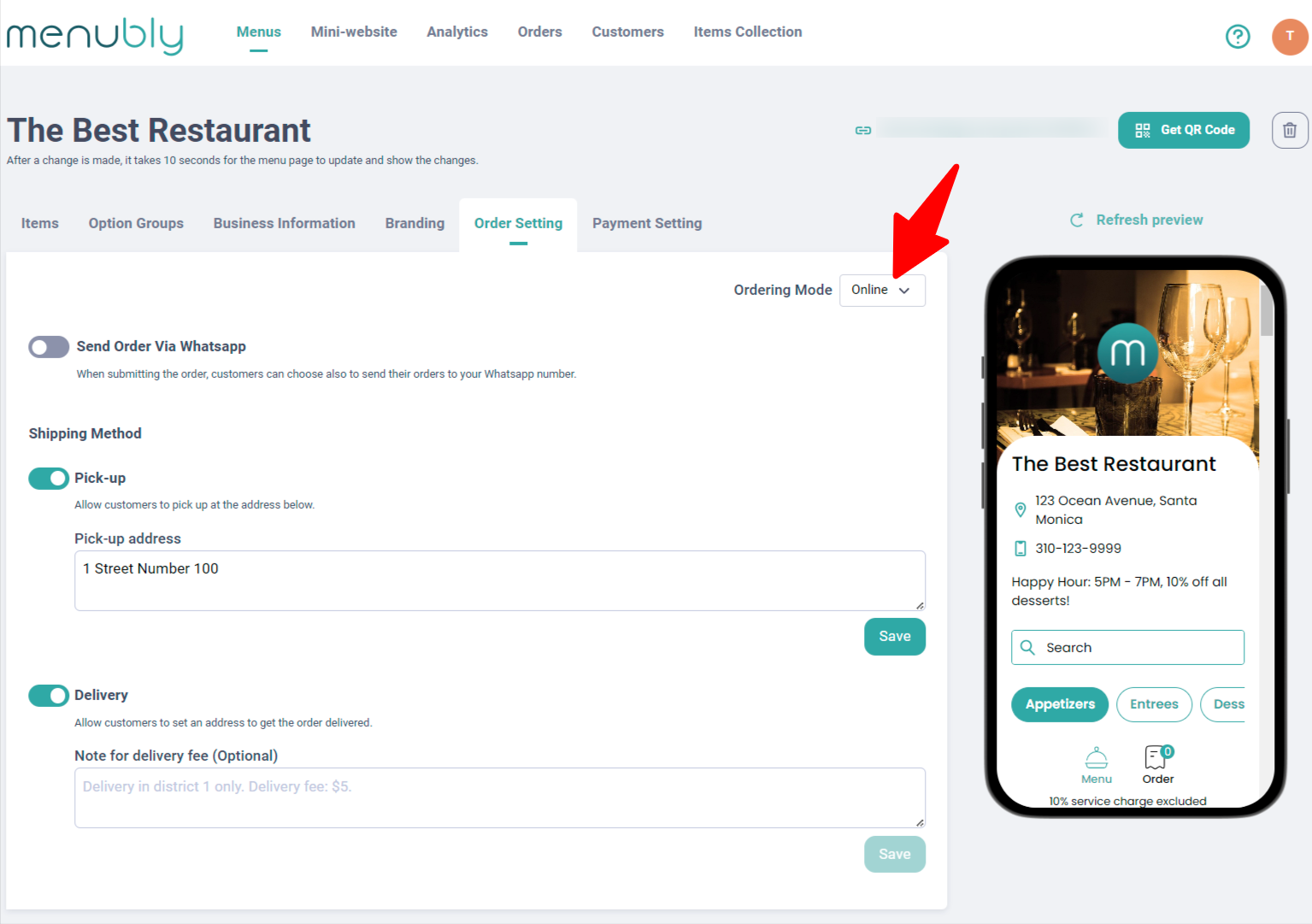
If you're selling online, don't forget to change the Ordering mode to Online, and add Pick-up or Delivery methods or both for your customers' convenience.
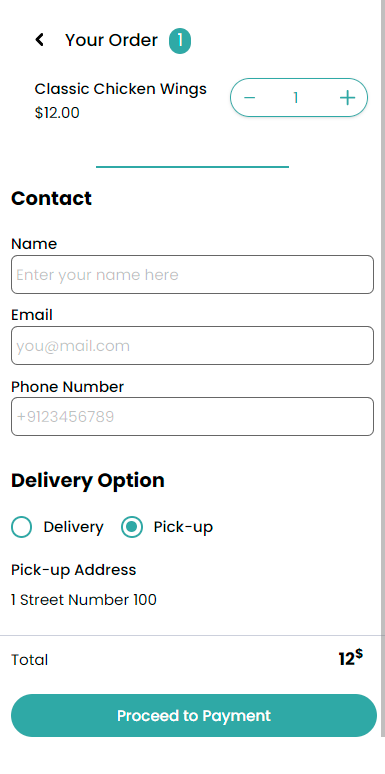
Step 2: Wait for around 10 seconds for all changes to apply and head to your menu to test it out. You should see the check out page like this, go ahead and try to checkout by clicking on Proceed to Payment button:
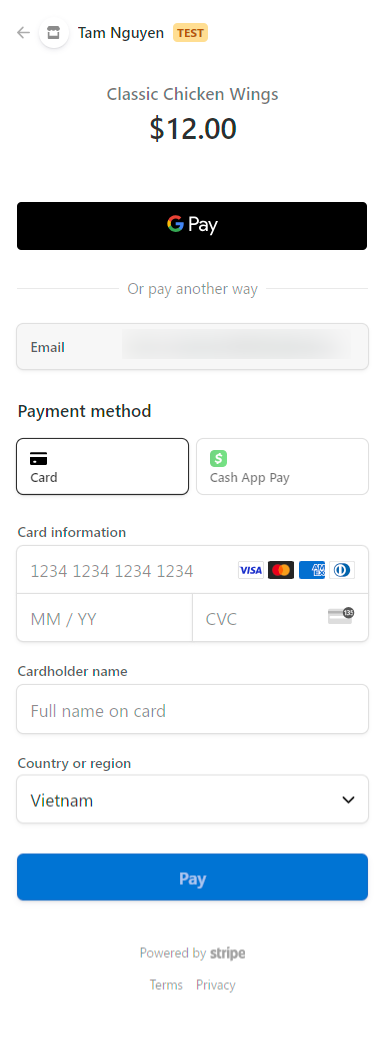
Step 3: You (and your customers) will then be redirected to the secured payment page powered by Stripe which look like this (depends on the payment method you selected on your Stripe account, the method can be less or more on your payment page):
Step 4: Your customers can finish the payment and get a confirmation email sent to their email address. Then you will see an order on Order page. To see how to manage order, check out our guide here.