

Share your online menu URL on social media
First, you will need to create a mini website or a create an online menu using Menubly.
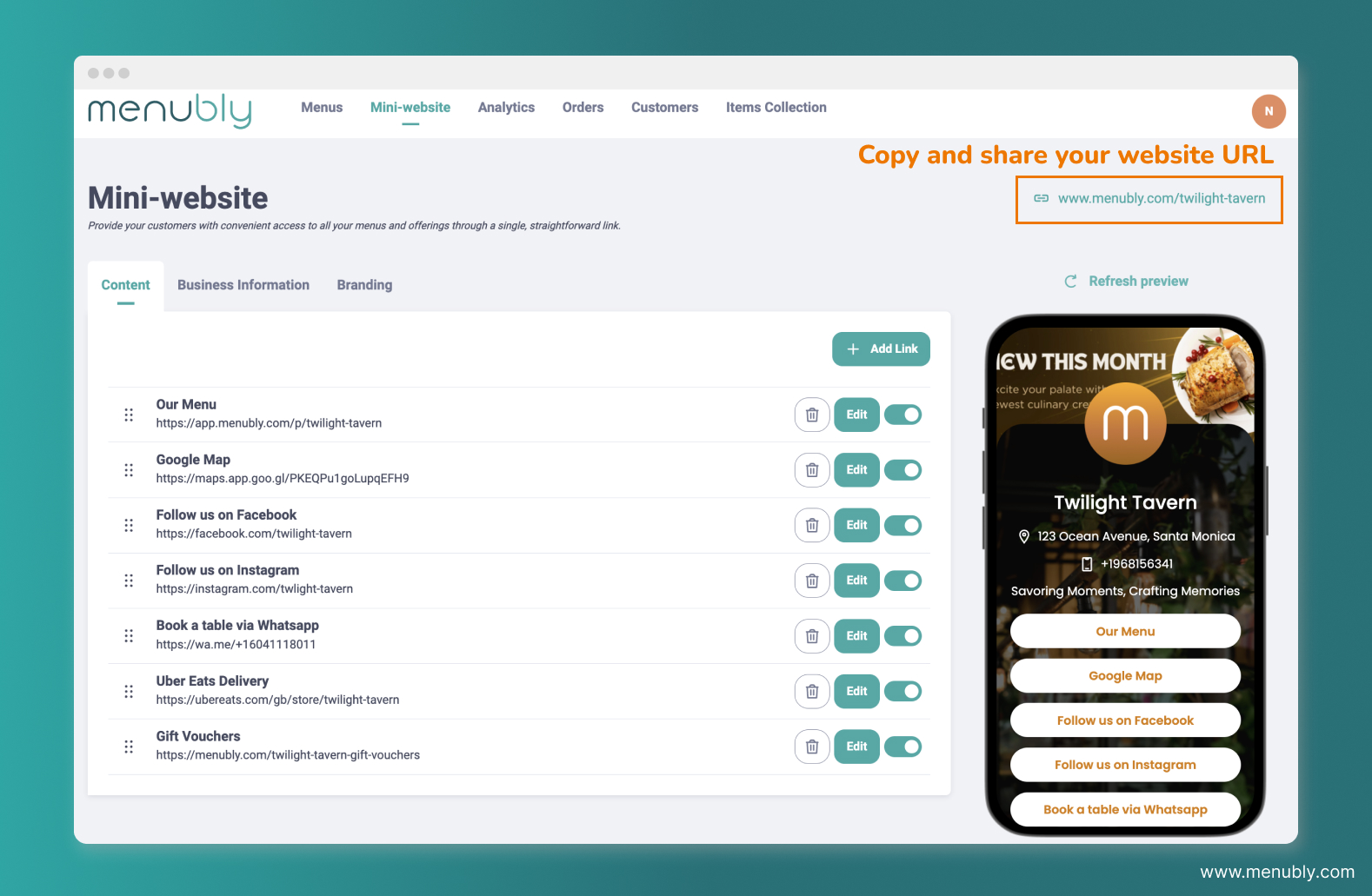
Once you have created a website/menu, you will get a short URL for your website/menu which look like this:
Website URL: https://www.menubly.com/twilight-tavern
Menu URL: https://app.menubly.com/p/a-tu-bola
You can now share your URL on social media or with your customers directly via whatsapp/sms or other marketing channel.
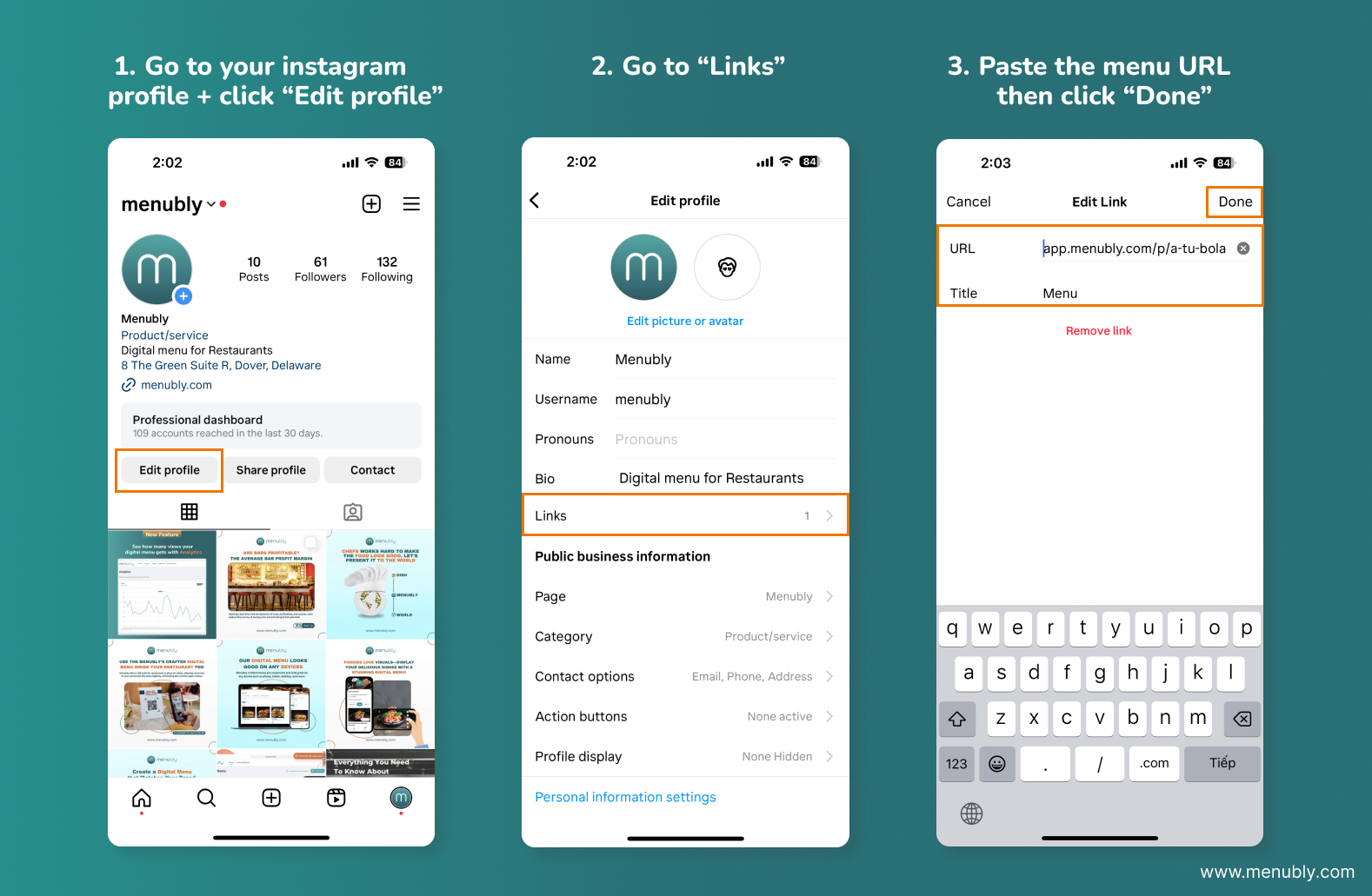
Share your website or menu URL on Instagram Bio
Open the Instagram app on your smartphone, go to your profile and tap "Edit Profile"
Go to "Links", then select "Add external link"
Paste your website or menu URL into the "URL" field and add a title for the URL (e.g. "Website")
Click "Done" to save the changes
Share your website or menu URL on Facebook
There are a few ways to add your website/menu to Facebook:
1. Add the contact info with your URL
Go to your page on Facebook
Go to "About"
Under "Contact info", fill in the "Website" field with your Menubly website/menu URL
2. Add a Call to Action Button which links to your URL
Go to your page on Facebook
Click on "Add a button" just below the cover photo
Click on Learn more about your business, then add your Menubly website/menu URL
3. Add your URL to the About section
Go to your page on Facebook
Go to "About"
Under "More info", fill in the "About" field with your Menubly website/menu URL
3. Create a post and share your URL
You can create a post on Facebook with a link to your website/menu
With Menubly, you can also create a QR code for your Menu, which your customers can scan to view the menu. Follow this guide on how to create and print out the QR code to place it on your restaurant's tables.