
How to import menu from CSV
Already have your menu in a spreadsheet? Menubly lets you import your menu directly from a CSV file, saving you hours of manual entry.
Download the sample template
Before importing, download our sample CSV template to make sure your file is formatted correctly:
Log into your Menubly account
Click on "Menus" in the top navigation menu
Select the menu you want to import items to
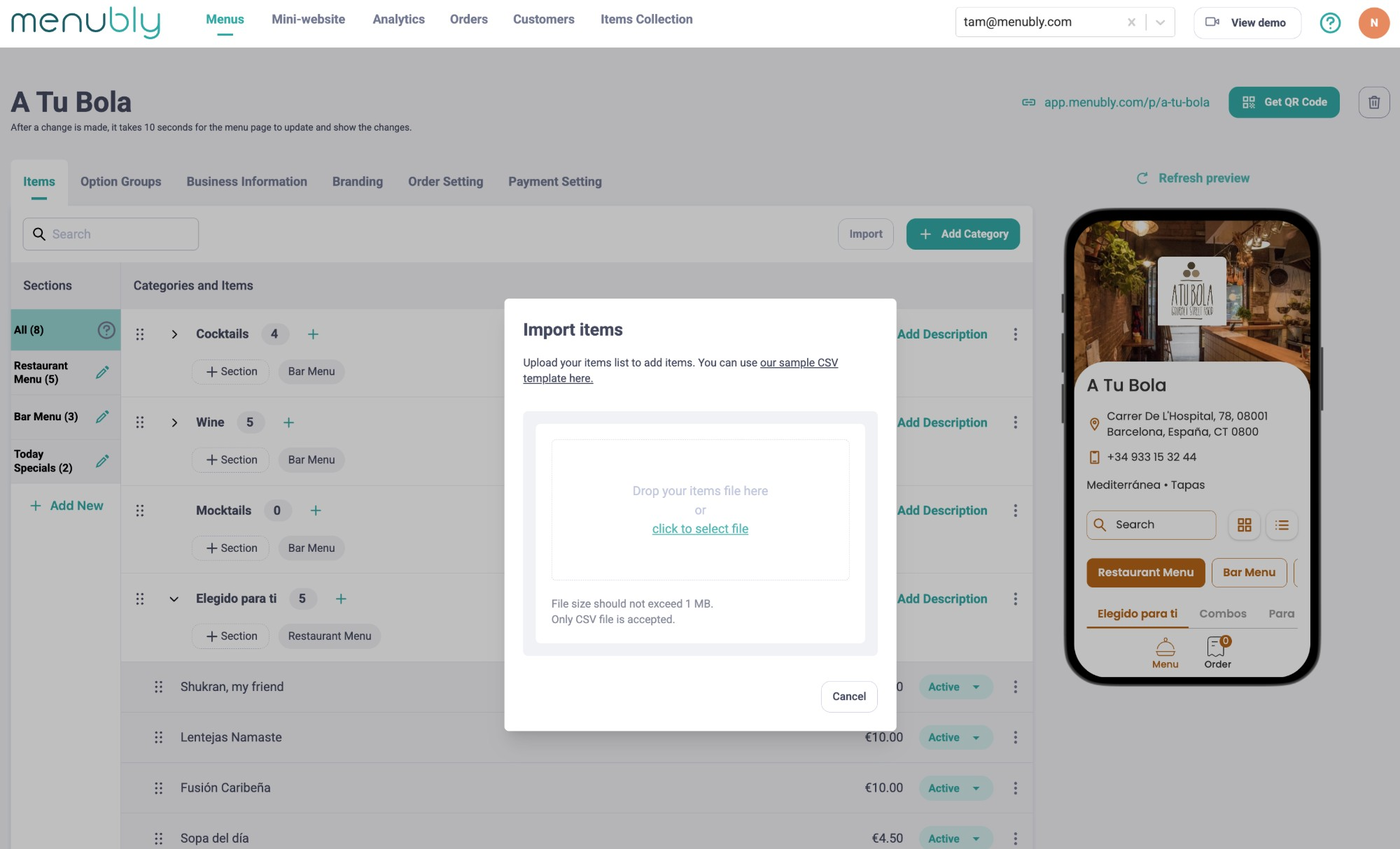
Click the "Import" button
In the popup, click "our sample CSV template here" to download

Prepare your CSV file
Format your CSV file with the following columns (or download this sample CSV template)
Column | Required | Description | Example |
|---|---|---|---|
Product Name | Yes | Name of the dish | Apple Pie |
Description | No | Item description | A classic apple pie made with fresh apples |
Category | No | Category the item belongs to | Dessert |
Price | No | Item price (numbers only) | 13 |
Tips for preparing your csv file:
Use one row per menu item
Keep category names consistent (items with the same category will be grouped together)
Don't include currency symbols in the price column
Only CSV format is accepted
Import your menu
Click the "Import" button on your menu page
Drag and drop your CSV file into the upload area, or click "click to select file"
Wait for the import to complete

After importing
Once your import is complete:
Review your menu to make sure everything looks correct
Add images to your items (images cannot be imported from CSV)
Set item statuses (Active, Sold out, Hidden) as needed
Need help?
If you don't want to format the file yourself, we offer free menu conversion for all customers. Simply:
Email your existing menu (PDF, photo, or spreadsheet) to support@menubly.com
We'll convert it and set up your digital menu within 24 hours
Still stuck? Email us at support@menubly.com or whatsapp us for help.