

How to set up dine-in ordering with QR codes
Dine-in ordering lets your customers scan a QR code at their table, browse your menu on their phone, and place an order directly — no need to wait for a server to take their order. This guide shows you how to set up dine-in ordering and use table QR codes with Menubly.
Before you start
Make sure you have an online menu already created — follow this guide if you haven't set one up yet.
Enable dine-in ordering
Log into your Menubly account
Click on "Menus" in the top navigation menu
Select the menu you want to edit
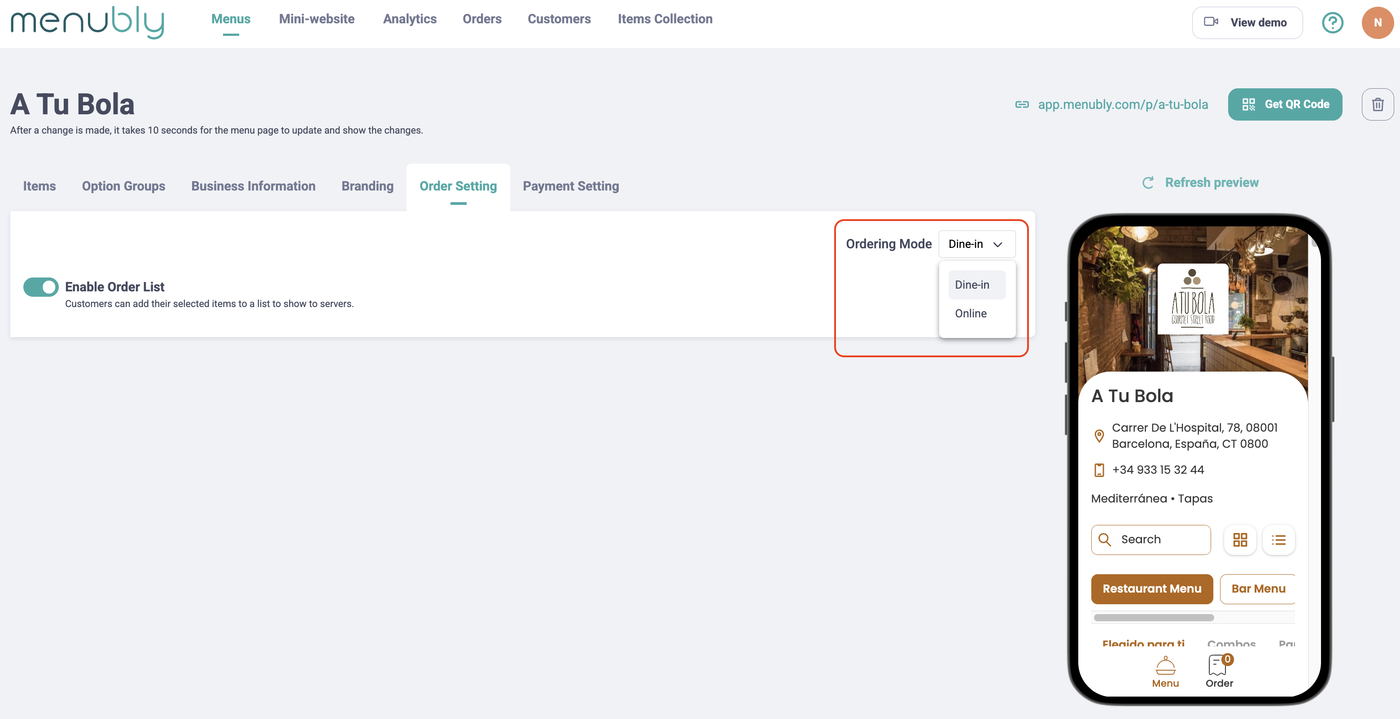
Go to the "Order Setting" tab
Open the Ordering Mode dropdown and select "Dine-in"
Click "Save"
Understand the ordering modes
The Ordering Mode dropdown has two options:
Dine-in: Customers scan a QR code at their table, browse the menu, and place an order for dine-in service
Online: Customers order remotely for delivery or pickup
Enable order list (optional)
The Order Setting tab also includes an Enable Order List toggle. When turned on, customers can add selected items to a list and show it to servers — useful if you want a digital browsing experience without full online ordering.
Download your QR code
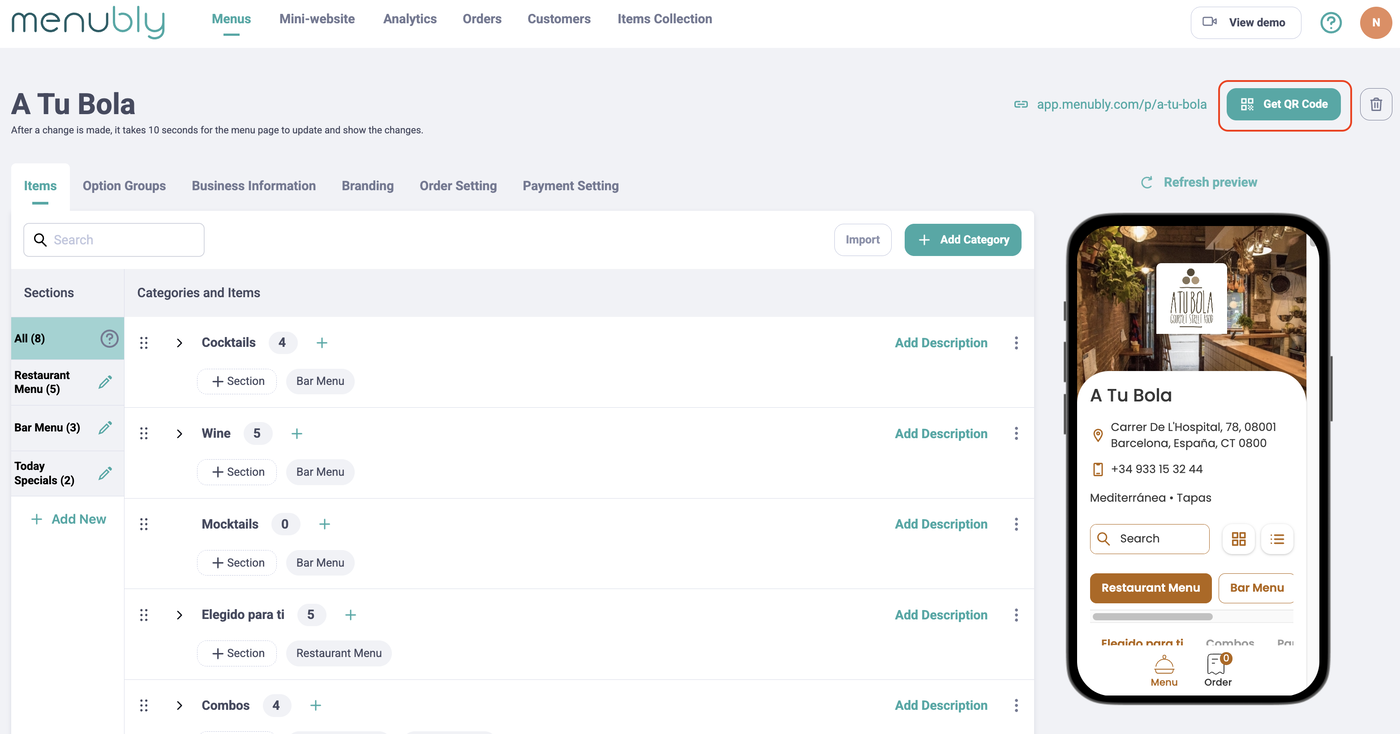
On the top right corner of your menu editor, you'll see your public menu URL
Click the "Get QR Code" button next to the URL
Download the QR code image
Print and place QR codes at tables
Once you've downloaded your QR code, you need to print it and place it where customers can easily scan it. Here are a few options:
Method | Best for |
|---|---|
Table tents / stand-up cards | Most restaurants — visible and accessible on every table |
Stickers on tables | Casual dining, food courts — durable and always visible |
Menu inserts / flyers | Restaurants that still use physical menus alongside digital |
Wall-mounted signs | Counter-service restaurants, food trucks |
For detailed instructions on printing your QR code, see Create and print the QR code for your restaurant's online menu.
How it works for your customers
Customer sits down and scans the QR code on the table with their phone camera
Your menu opens in their phone's browser — no app download needed
Customer browses the menu, adds items to their cart, and customizes with add-ons
Customer shows their phone to the waiter to place the order

Your QR code never changes
One of the best parts about Menubly's QR code: it stays the same even when you update your menu. Change prices, add new dishes, or mark items as sold out — the QR code always links to your latest menu. No reprinting needed.
Tips for dine-in ordering
Place QR codes where they're easy to see — center of the table or near the edge where customers sit
Add a short instruction next to the QR code (for example, "Scan to view menu & order")
Use the same QR code for all tables — your menu link is the same regardless of table number
Test the experience yourself — scan the QR code with your phone to see exactly what your customers see
Frequently asked questions
Do customers need to download an app to use dine-in ordering?
No. Customers scan the QR code with their phone camera and your menu opens directly in their browser.
Do I need a different QR code for each table?
No. The same QR code works for every table because it links to your menu, not a specific table number.
What happens if I update my menu after printing the QR codes?
Nothing — the QR code always links to the latest version of your menu. You don't need to reprint anything.
What's the difference between dine-in and online ordering?
With dine-in ordering, customers browse the menu and show their cart to a waiter to place the order. With online ordering, customers complete the order and pay remotely for delivery or pickup.
Can I use dine-in ordering and online ordering at the same time?
You can only select one ordering mode at a time in the Ordering Mode dropdown. If you need both, consider creating separate menus for dine-in and online orders.
Do customers need internet access to scan the QR code?
Yes. Customers need a mobile data or Wi-Fi connection to load the menu in their browser after scanning the QR code.